Install Treform Desktop


Download
Requires Rhino 8 SR29 or later — earlier Rhino versions aren't supported.
First launch
Treform is signed and notarized by Apple, so there is nothing special to do:
- Open the file you downloaded and drag Treform into your Applications folder.
- Double click Treform. It opens like any other app.
Downloaded Treform before September 2026? Older files can still show a warning. Download the current file above and it opens cleanly.
The installer is signed, so Windows opens it without warnings:
- Double click the file you downloaded.
- Follow the installer. Treform starts when it finishes.
Downloaded Treform before September 2026? Older files can still show a warning. Download the current file above and it installs cleanly.
Connect your software
- Sign in with your Treform account.
- Open your modeling software and keep it running.
- Click Connect in Treform's header and pick your software. Treform sets up the link for you. There are no commands to type.
- Rhino needs Rhino 8 SR29 or later. Restart Rhino once after the first connect; the bridge then starts itself every launch.
- Grasshopper comes along for free through the Rhino bridge. Nothing extra to install.
- SketchUp is in beta. Treform installs its extension for you on the first connect.
- Revit is in beta and Windows only.
- Blender is in beta.
(Rhino on Mac, first time only) macOS asks for permission so Treform can control Rhino. Click Allow in System Settings, then click Connect again.
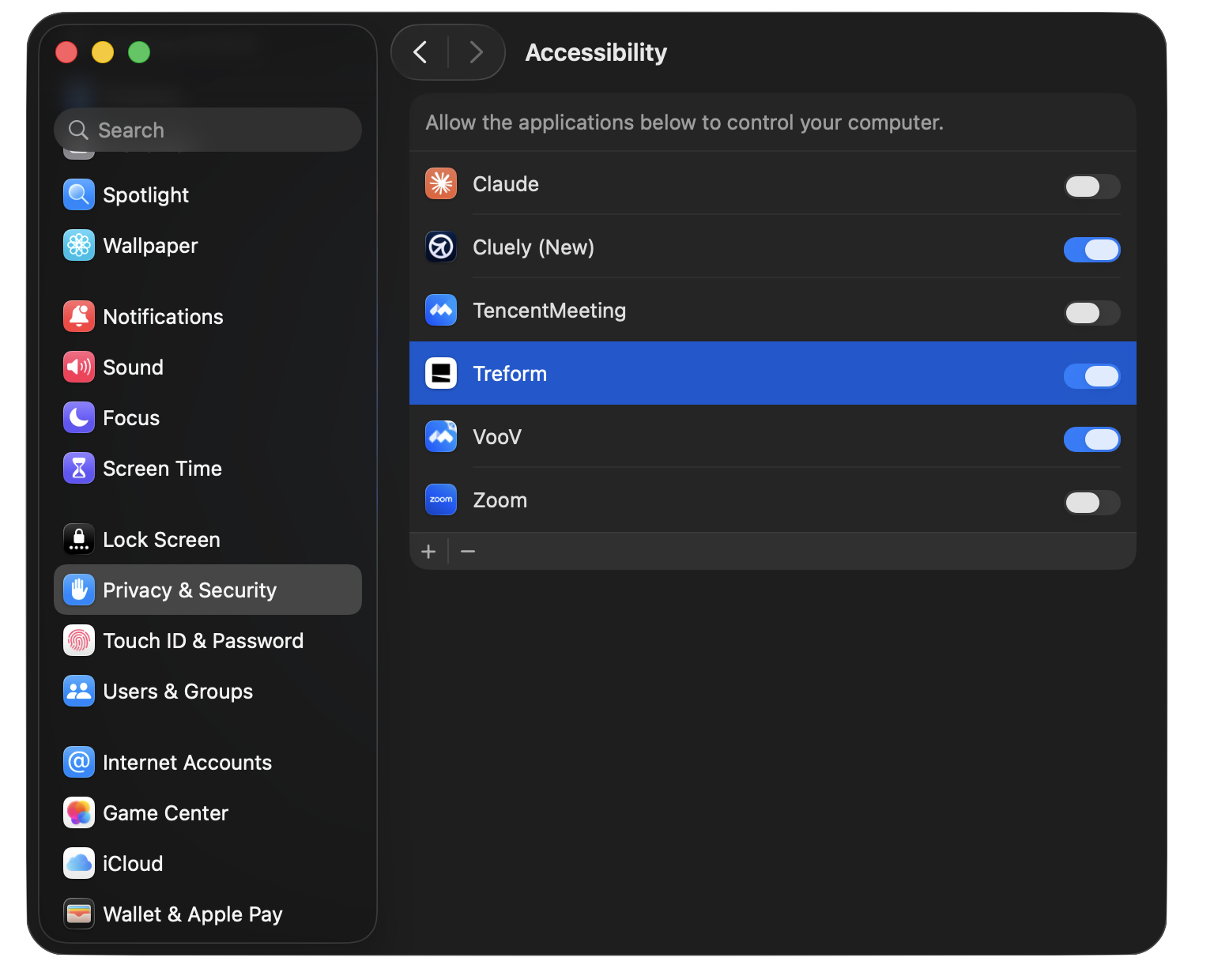
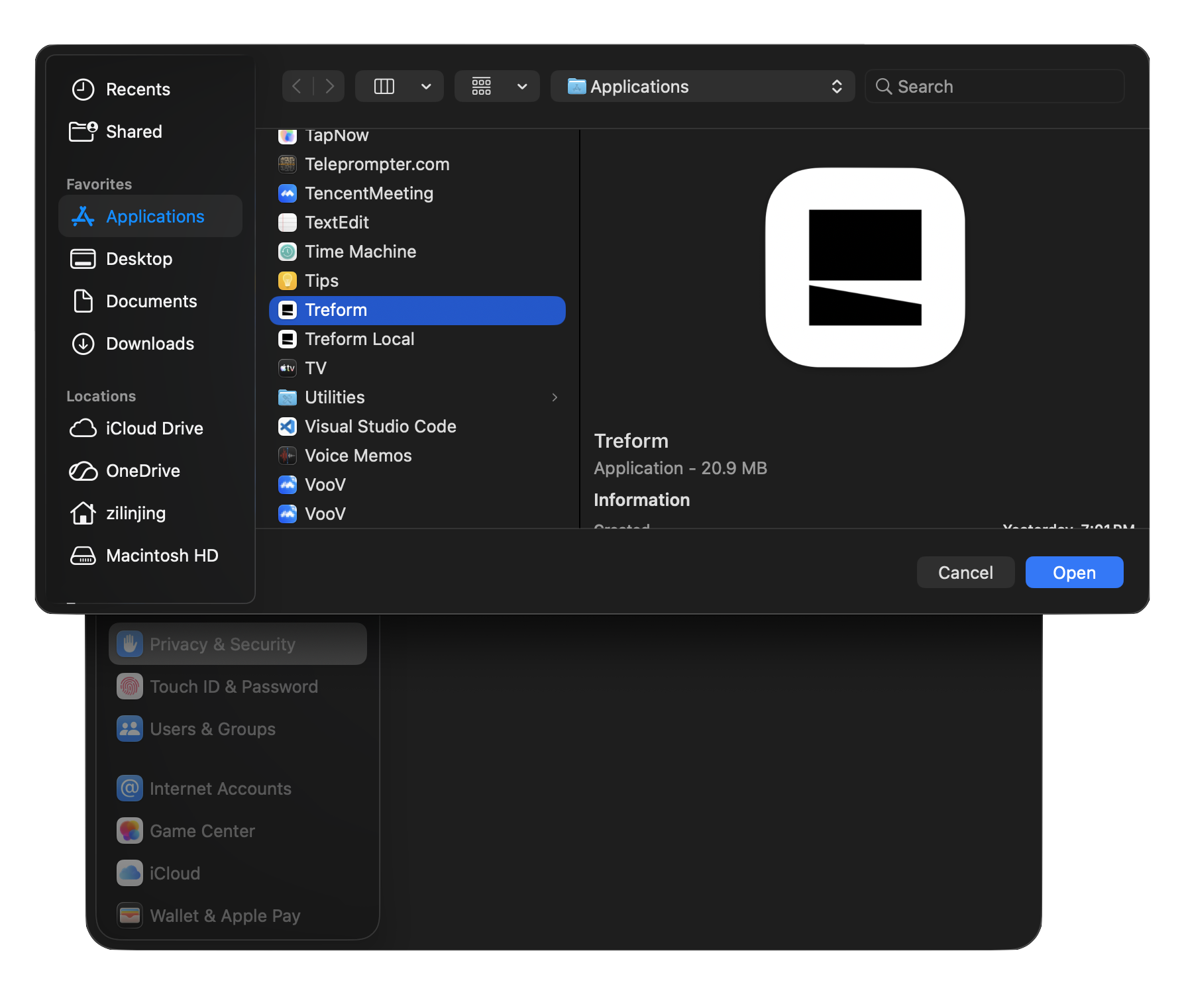
When Treform updates, the permission you gave it earlier can stop counting — even though it still looks switched on. Connect then fails for no obvious reason. Removing Treform from the list and adding it back fixes it:
- Open System Settings → Privacy & Security → Accessibility.
- If Treform is in the list, select it and click − to remove it.
- Click +, choose Applications → Treform, then click Open.
- Make sure the switch next to Treform is on.
- Click Connect in Treform again — it should connect right away.
Yes. Treform is signed and notarized by Apple on macOS and signed on Windows, so both systems verify the app comes from us and has not been tampered with. If your computer shows a warning, you are opening an old file. Download the current one above and it opens cleanly.